Who gets what
For every alert, DomainWarn decides in two steps. First the organization's rules apply (minimum severity, quiet hours, maintenance windows, alert window) along with the organization's channels: every active channel receives the alert from its minimum severity, exactly as before. Then each person gets what their own settings say – no more and no less.
- Your settings are in the account (menu top right) under "My notifications", separately for each organization, and in the app under avatar → Notifications & alarms.
- Until you save something, defaults from your previous settings apply: email from warning (unless you had switched off alert emails), push from warning, no alarm and no SMS. So nothing changes for existing accounts until someone changes something.
- Client access users set their notifications only for their client's domains and receive no emails this way.
- Per person and channel an alert arrives at most once, even if several settings match. If your address is also a fixed address in an email channel, you still get the email only once.
See also: Organization channels
The matrix: alert types and channels
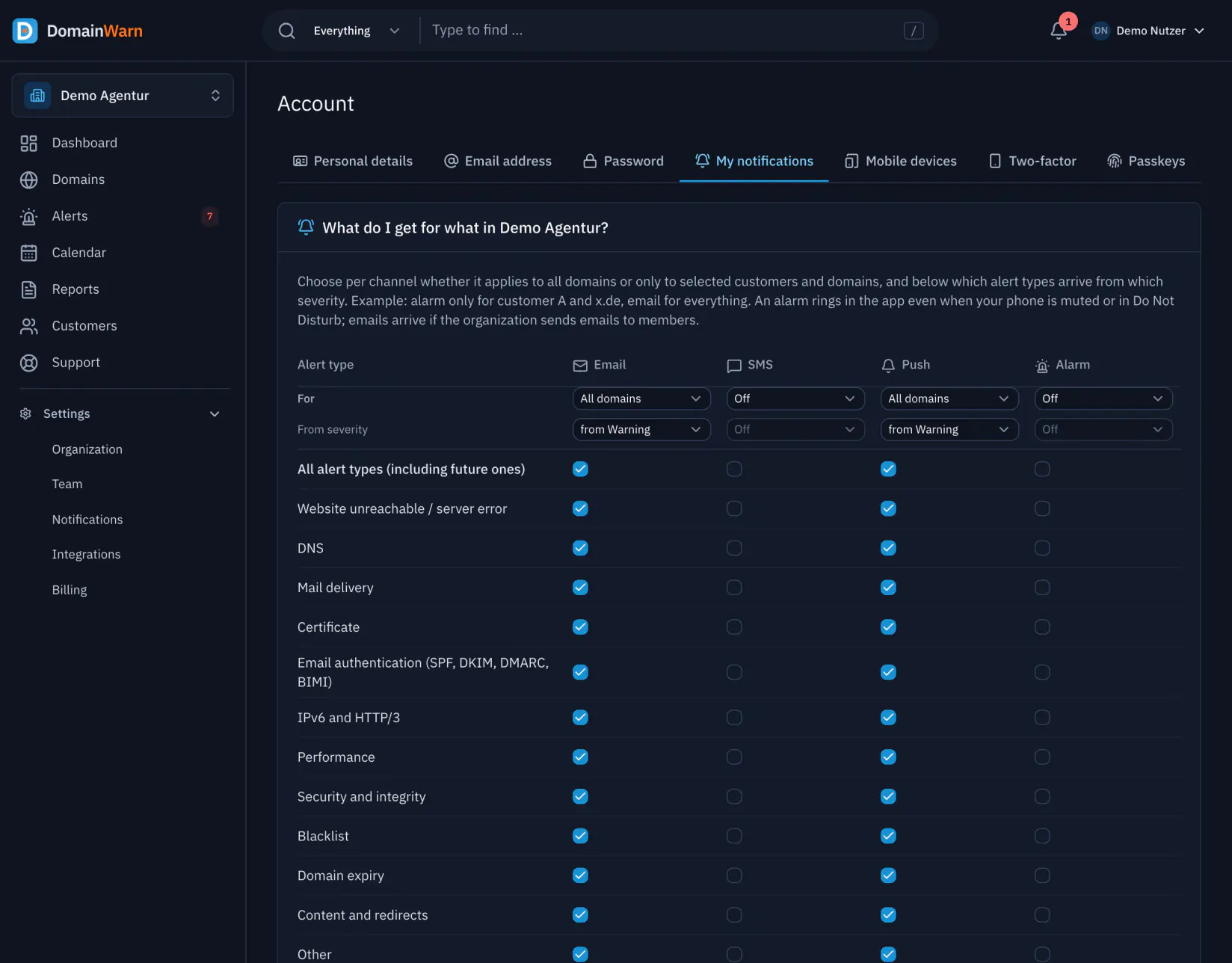
Under "My notifications" there is a table: rows are the alert types, columns the four personal routes email, SMS, push and alarm. A tick means: this type arrives on this route. Above each column you choose "From severity" (info, warning, critical), say email from warning and alarm only when critical. "All alert types (including future ones)" includes types DomainWarn adds later.
- Alert types: website unreachable / server error, DNS, mail delivery, certificate, email authentication (SPF, DKIM, DMARC, BIMI), IPv6 and HTTP/3, performance, security and integrity, blacklist, domain expiry, content and redirects, other.
- Email: arrives if the organization has an email channel with "to members"; the column decides which of those alerts reach you.
- Push: notifications in the app and in the browser (web push), with a normal sound, silent during your quiet hours.
- Alarm: a push notification that rings in the app despite the silent switch and Do Not Disturb and repeats until someone acknowledges. Alarm includes push. By default only for real outages from critical: website unreachable or server error, DNS not resolving, mail reception down, certificate expired. "Certificate expires soon" (warning) and IPv6 arrive as push.
- SMS: only with a confirmed mobile number, see below.
- Under "Events, quiet hours and support" you also choose for which events you are notified: new, escalated and resolved. Reminders about open alerts count as "new".
For which domains
Above each column there is also "For": "All domains", "Only selected customers/domains" or "Off". With "Only selected" you pick clients and individual domains; a client includes its future domains. That way you get an alarm only for client A and the domain x.com, but email for everything.
An alarm for all domains rings for every matching alert in the whole organization, at night as well. That is why DomainWarn asks for an explicit confirmation the first time you switch it on.
Exceptions for clients and domains
Under "Exceptions for customers and domains" you create a separate matrix for a client or a domain, such as "for client B's shop also performance by push". Exceptions add to the setting for all domains. The choice "Only selected customers/domains" creates such exceptions automatically; here you see and change them in detail.
"Receive nothing for this scope" turns an exception into an exclusion: for this client or domain your setting for all domains does not apply, and for a domain neither does its client's exception. Handy for the staging domain or a client a colleague looks after.
Own quiet hours
With "Own quiet hours" (from/to, also across midnight) things go quiet for you: push arrives without sound, email and SMS are dropped. Alarms still reach you – whoever set an alarm wants to be woken. The quiet hours apply to all your settings, including exceptions without their own quiet hours.
Before that, the organization's quiet hours from the rules (Settings → Notifications → Rules) apply: they hold back warnings and info for everyone, critical alerts always go through.
Alarms and repeats
Alarms only reach devices with the DomainWarn app and only once you switch them on: in the app under Notifications & alarms → "Receive alarms" or in the dashboard under Account → Mobile devices (off by default; alarms then arrive as push with sound). There you also set the repeat: by default every 5 minutes, at most three times, until someone acknowledges.
Acknowledging, "I’m on it" or the alert being resolved end the repeat for everyone. "Remind me later" mutes it only for you, for 15 minutes or an hour.
See also: Alarms on silent in the apps · Working on alerts
Personal SMS
Under "Mobile number for SMS" you enter your own number and confirm it with the code DomainWarn sends by SMS. Only then does the SMS column appear in your matrix. A new number replaces the confirmed one only after the correct code; until then SMS keep going to the old one.
- From the Freelancer plan. The SMS count against the organization's monthly SMS quota: 20 on Freelancer, 100 on Agency, 300 on Agency Pro. Once it is used up, further SMS are dropped until the next month.
- Content: title, domain and link in at most 160 characters.
- Not during your own quiet hours. The confirmation code is only available as a team member of an organization with SMS in its plan; it counts against the quota as well.
- SMS channels of the organization with fixed numbers (the agency’s duty phone, for instance) remain organization channels as before.
Support requests
When DomainWarn support replies to your request or changes its status (waiting for your reply, solved, reopened), you get an email, a push notification in the app and browser and an entry in the bell. Under "Support requests" you switch off email and push separately (both on by default); during your quiet hours the push arrives silently. Support notifications never come as an alarm or SMS and only name subject, reference and status, never the text of the reply.
See also: Support and help
Setting it up for members
Owners and admins open "Notifications of …" for any member under Settings → Team → Members & invitations and set the same matrix there: channels, severity, for which domains, exceptions and quiet hours. The rest of the team sees the settings but cannot change them. They remain the member's settings: the member can change them at any time, and every change by someone else is recorded in the audit log.
Next to each member it says whether they can be reached by alarm: "Reachable by alarm", "Alarms switched off" or "No device with alarms". So before the weekend you can see whether anyone would be woken for client A at all.
See also: Team and roles