Who may do what
Working on alerts requires write access, that is the role owner, admin or member. Read-only users see the assignment, notes, timeline and operating notes but change nothing. Client access users see none of this – no notes, no operating notes and not who is on it.
I’m on it
"I’m on it" takes on the alert: it is assigned to you and acknowledged at the same time, and reminders and alarm repeats end for everyone. Whoever had the alarm on their phone hears it stop and gets "Anna is on client.com: website unreachable" instead. The same line goes to the organization's channels such as Slack, Teams or webhook, so nobody starts twice there either.
- If the alert is already assigned to someone else, it does not work and you see "Already assigned to Anna".
- Resolved alerts no longer have the button.
- In the apps, "I’m on it" works right from the notification without opening the app.
Remind me later
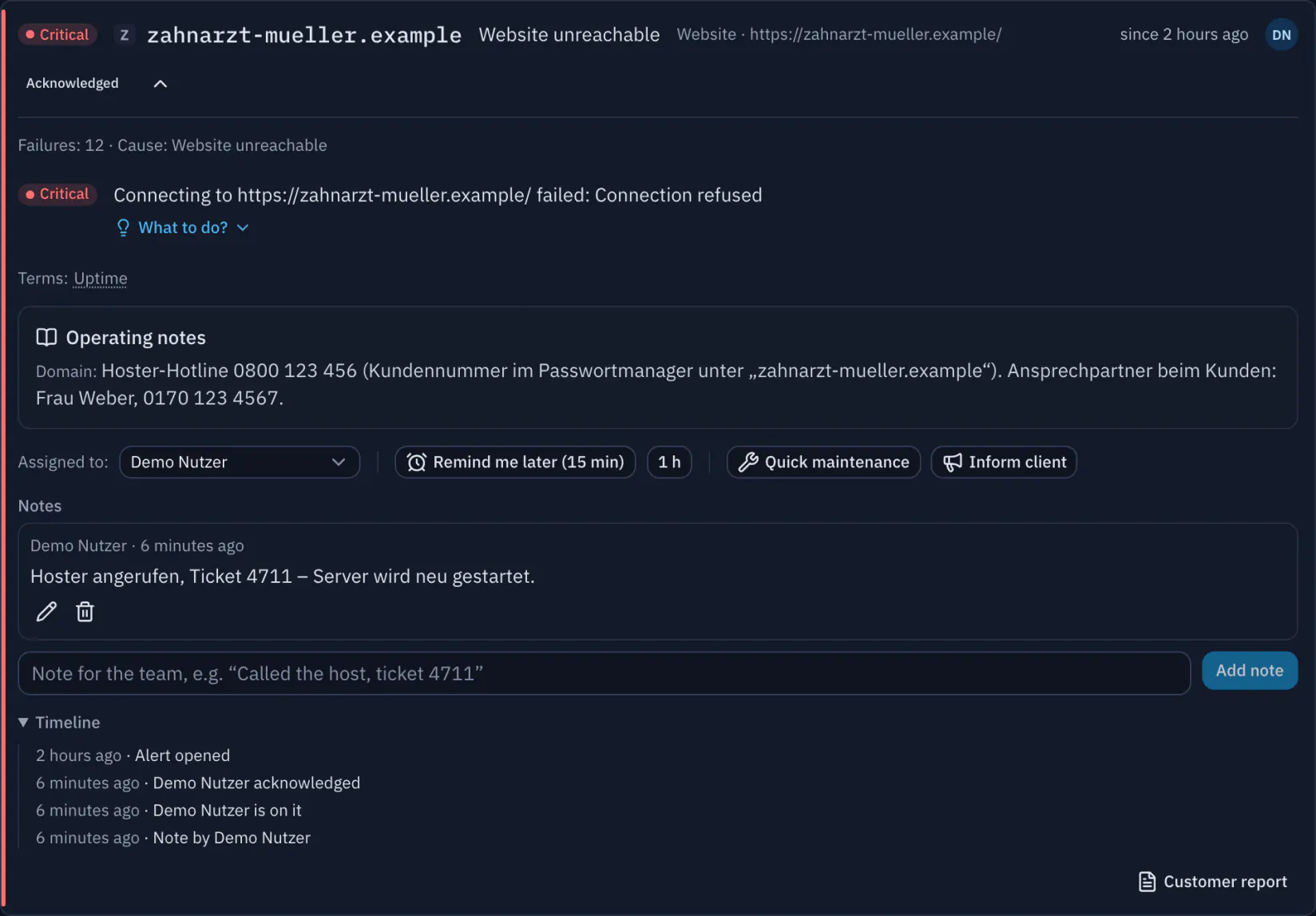
"Remind me later" (15 minutes or 1 hour) mutes alarms and reminders for this alert only for you, say while you are driving. If it is still open and nobody has acknowledged it afterwards, a reminder arrives. Nothing changes for the others. "Cancel reminder" undoes it, and a new call replaces the old one.
Assigned to
Every alert shows whom it is assigned to; the list under Alerts shows the initials and filters by "Assigned to me" and "Not assigned". Assigning counts as acknowledging.
- Every member with write access assigns a free alert to themselves ("I’m on it" or "Assign to me") and removes their own assignment again.
- Owners and admins assign an alert to any team member with write access and remove any assignment.
- Whoever is assigned gets a push notification "Assigned to you: …" and an entry in the bell – not when assigning yourself.
- "Assigned to" always concerns a single alert. Who is notified for which clients and domains is set by each person in their notifications.
See also: Notifications
Notes and timeline
Under "Notes" the team records what has already happened: "Called the host, ticket 4711". Notes are plain text up to 2,000 characters, addresses become links, and your own can be edited and deleted. The alert list shows how many notes an alert has.
The timeline shows everything in order: alert opened, severity increased, acknowledged, who is on it, assignments, notes, maintenance started and ended, client informed, resolved. Deleted accounts appear as "Deleted account", actions by DomainWarn itself as "DomainWarn".
Operating notes
Operating notes are where you need them in an emergency: in the alert and, shortened, in the related emails. Typical content is the host's hotline, where the login is stored and whom to call.
- Per domain: on the domain page under "Operating note".
- Per alert type as a default for all domains: under Settings → Notifications → Operating notes, such as the mail provider's number for "Mail delivery".
- An alert shows both: the note of the domain and the one for its alert type. Plain text up to 4,000 characters, addresses become links; who changed it and when is shown below.
- The whole team may read them, anyone with write access may edit them.
Quick maintenance
"Quick maintenance" on the domain page and in every alert starts a maintenance window from now: 15, 30, 60 or 120 minutes or a custom duration from 5 to 1,440 minutes, with an optional note. While it runs, "Maintenance until 14:30" with "End" is shown, and no alerts are opened for the domain – handy for an update, a migration or a restart you are about to trigger.
- Checks keep running, changes land marked in the history of the domain; recovery of open alerts is still detected.
- Start and end appear in the alert's timeline and in the audit log; the windows are listed under Settings → Organization → Maintenance windows with the name "Quick maintenance".
- In the apps, "Start maintenance" is also available for all domains of a client, as a shortcut on the iPhone and on the app icon on Android for several domains at once (up to 50).
See also: Planning maintenance windows
Inform client
"Inform client" in an alert tells the domain's client what is going on – as an incident notice on their status page, as an email to their contact address or both. You choose the occasion: "Disruption begins", "Update" or "Resolved"; DomainWarn prefills title and text in the client's language, with an optional addition, and you edit the texts before sending.
- What is available depends on the client: the status page if it is enabled, email if a contact address is stored. The domain needs a client.
- "Update" and "Resolved" continue the same notice on the status page; "Resolved" closes it. A new start or an update after "Resolved" reopens it.
- Sender and brand as with the monthly reports: with white-label in your agency's design and name, with your own mail server also from your address.
- If only part works – the status page is updated but the email failed –, "Status page updated, email not sent" appears with the reason, and the dialog stays open with only email selected so you can send the email again. If nothing goes out, you see the error and nothing is recorded.
- What went out is recorded in the alert's timeline ("Client informed") and in the audit log.
See also: Public status page