The calendar
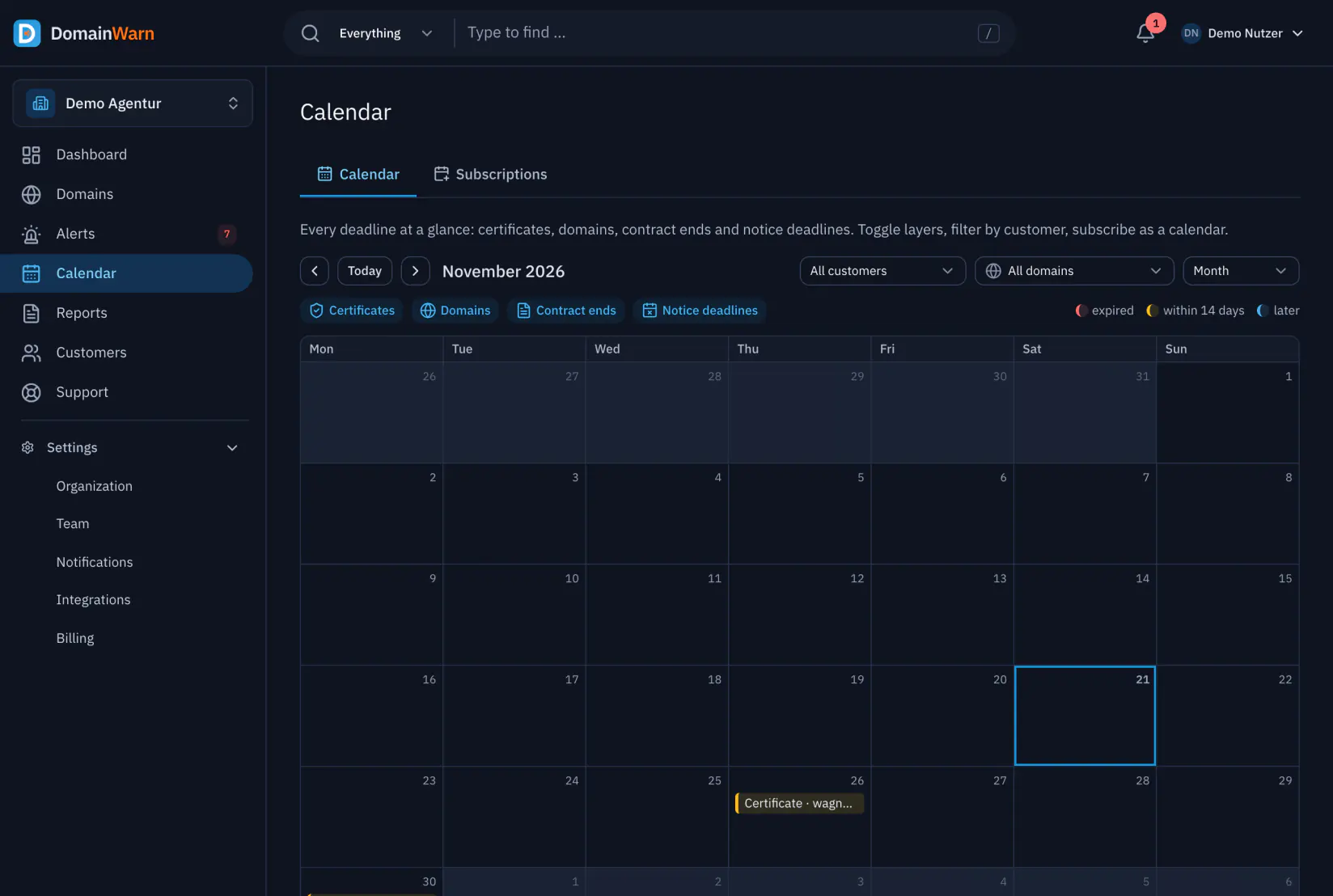
The "Calendar" menu item sits in the navigation between Alerts and Reports, for every role. The "Calendar" tab shows a week or a month; each deadline is an all-day entry on the day it expires, coloured by urgency: expired, within 14 days or later. A click opens the domain. From Alerts → Expirations, "View in calendar" leads here.
- Certificates: expiry of the certificates of the monitored host names.
- Domains: expiry of the registration according to the registry.
- Contract ends and notice deadlines: from the contract data you store with the domain (end and notice period).
- Included in the Free plan and every other plan; the data comes from the running checks, there are no extra lookups.
Layers and filters
Under "Layers" you toggle certificates, domains, contract ends and notice deadlines individually. Next to it you filter by client and by domain. Layers and filters are part of the page address: you can send a link to "certificates of client A" to colleagues, and they see the same selection.
Custom calendar subscriptions
In the "Subscriptions" tab, under "Custom calendar subscriptions", you put together a calendar: name, layers, "Only these customers" (empty means all) and optionally "Reminder 7 days before". "Create subscription" generates a personal link that you add to your calendar.
- The link is shown only right after creating it. "Reset link" creates a new one and invalidates the old one, "End subscription" switches it off. Below it you see when the calendar was last fetched.
- The selection belongs to the subscription, not the address: several subscriptions per person are possible (up to 20), such as one per client, and each can be reset on its own.
- A subscription contains deadlines from 30 days back to 90 days ahead. If you leave the organization, it ends.
- Anyone who knows the link sees the deadlines. So do not pass it on; let colleagues create their own subscription instead.
Organization subscription
Under "Organisation subscription" in the same tab you find the calendar with all domain and certificate expiries of the organization, previously under Settings → Organization → Calendar. Existing addresses keep working unchanged. It contains, per domain with a known expiry date, an all-day event "Domain expires" and per certificate an event "Certificate expires", each with client, registrar or issuer and a link to the dashboard, with reminders 14 and 3 days ahead, in the time zone and language of the organization. Owners and admins set it up, create a new address and end it.
Adding it to Google, Apple or Outlook
Next to every subscription there are "Add to Google Calendar", "Add to Apple Calendar" and "Add to Outlook"; they open the respective calendar with the subscription. "Copy link" gives you the address for other programs.
- Always add it as a subscription by URL, do not import it as a file – otherwise the calendar stays at the state of the import.
- Calendar apps fetch subscribed calendars at their own intervals; Google updates with a delay of up to about 12 hours.
- Alerts and maintenance windows are not part of the calendar.
Client access and apps
Client access users only see the expiries of their client's domains in the calendar, without contract ends and notice deadlines, and their subscriptions only contain those. In the apps, the calendar is under the avatar: a month with dots per day or a list of the next 60 days, with certificate and domain expiries and a client filter; a tap opens the domain. Subscriptions are created in the dashboard.
See also: Apps